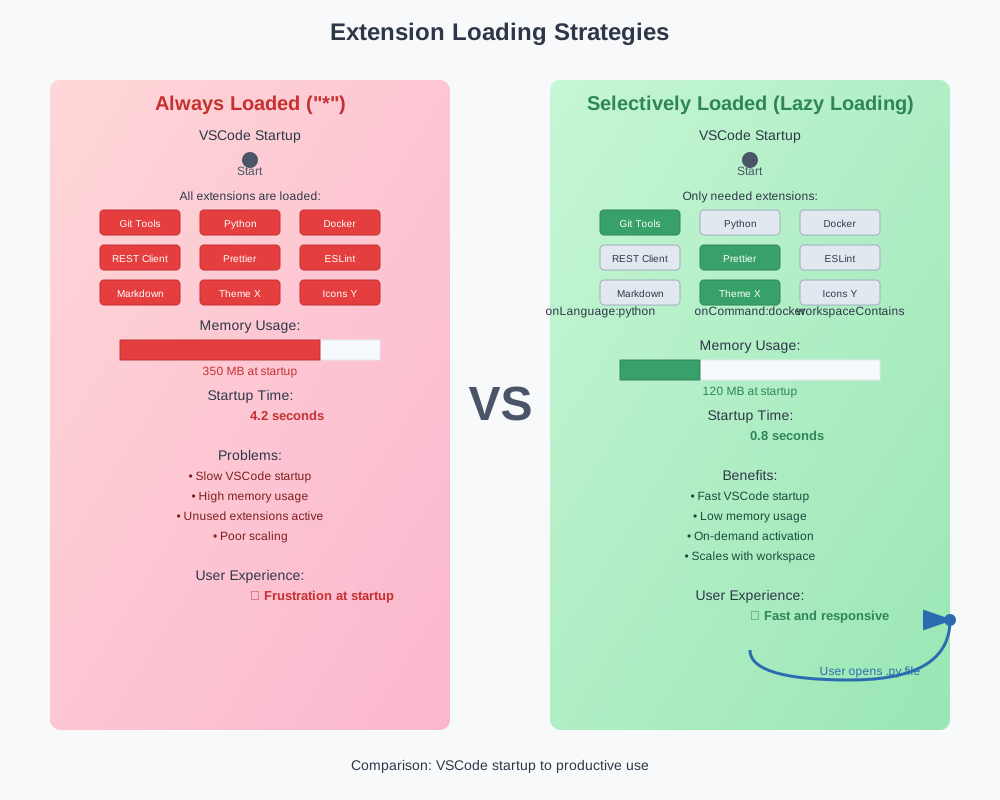
VSCode does not start all extensions automatically on launch.
Instead, the package.json file determines via so-called
activation events when an extension is loaded. This principle is called
lazy loading and is crucial for the performance of large workspaces with
many installed extensions. While Eclipse plugins are traditionally
loaded at IDE startup, VSCode’s event-driven architecture enables
significantly better resource usage and faster startup times.
Understanding activation events is essential for extension developers, as the wrong decision between immediate availability and performance optimization can determine the success of an extension. An extension that loads too early slows down VSCode unnecessarily. An extension that loads too late frustrates users with delayed functionality.
The onCommand event is the most common and safest
activation pattern for extensions. The extension is only loaded when the
user explicitly executes a specific command. This guarantees that only
actually needed functionality consumes resources and prevents extensions
from slowing down VSCode startup unintentionally.
This pattern is particularly suitable for tools that require explicit user interaction, such as code formatting, file generation, or analysis tools. The user consciously decides when the extension functionality is needed.
// package.json – Extension is only loaded upon command execution
{
    "activationEvents": ["onCommand:myExtension.processFile"],
    "contributes": {
        "commands": [{
            "command": "myExtension.processFile",
            "title": "Process current file"
        }]
    }
}
// extension.ts – Activation occurs only when needed
export function activate(context: vscode.ExtensionContext) {
console.log('Extension is NOW activated – not at VSCode startup');
// Command is only registered when needed
const command = vscode.commands.registerCommand('myExtension.processFile', () => {
const file = vscode.window.activeTextEditor?.document.fileName;
if (file) {
console.log(`Processing: ${file}`);
// Actual processing logic would go here
}
});
context.subscriptions.push(command);
}The onLanguage event automatically activates extensions
as soon as a file of a specific programming language is opened. This
strategy is ideal for language servers, syntax highlighting extensions,
or language-specific development tools. The extension only loads when
the user is actually working with the respective language.
Specificity is important: A TypeScript extension should only load for TypeScript files, not for all JavaScript-like languages. This avoids unnecessary activations and ensures focused functionality.
// package.json – Activation only for TypeScript files
{
    "activationEvents": ["onLanguage:typescript"]
}
// extension.ts – TypeScript-specific features are registered
export function activate(context: vscode.ExtensionContext) {
console.log('TypeScript extension activated – only for .ts files');
// Completion Provider only for TypeScript
const provider = vscode.languages.registerCompletionItemProvider(
'typescript', // Explicitly limited to TypeScript
{
provideCompletionItems(document, position) {
// Provide TypeScript-specific completions
const completion = new vscode.CompletionItem('interface');
completion.insertText = 'interface ${1:Name} {\n\t${2:prop}: ${3:type};\n}';
return [completion];
}
},
'.' // Trigger character
);
context.subscriptions.push(provider);
}The workspaceContains event enables activation based on
project structure and is especially valuable for build tool integration
or framework-specific extensions. The extension only loads in projects
that contain certain indicator files, such as package.json
for Node.js projects or pom.xml for Maven projects.
This strategy prevents Maven tools from being activated in Python projects or Node.js tools in Java projects. The result is a clean, contextually relevant development environment.
// package.json – Activation only in Node.js projects
{
    "activationEvents": ["workspaceContains:**/package.json"]
}
// extension.ts – Project type detection after activation
export async function activate(context: vscode.ExtensionContext) {
console.log('Node.js extension activated – package.json detected in workspace');
// Verify project type after activation
const packageFiles = await vscode.workspace.findFiles('**/package.json');
if (packageFiles.length > 0) {
console.log(`${packageFiles.length} Node.js projects detected`);
// Setup npm-specific features
setupNodeJSIntegration(context);
}
}
function setupNodeJSIntegration(context: vscode.ExtensionContext): void {
// Register npm-specific commands and providers
const npmCommand = vscode.commands.registerCommand('myExtension.runNpmScript', () => {
// npm script execution logic
});
context.subscriptions.push(npmCommand);
}Combining activation events with when contexts enables
even more precise control over extension functionality. Commands can be
dynamically enabled or disabled based on the current editor state or
other context conditions.
// package.json – Command only visible for TypeScript files
{
    "contributes": {
        "commands": [{
            "command": "myExtension.analyzeCode",
            "title": "Analyze TypeScript Code",
            "when": "editorTextFocus && resourceExtname == .ts"
        }]
    }
}
// extension.ts – Dynamic context updates
export function activate(context: vscode.ExtensionContext) {
// Monitor editor changes for context updates
const editorListener = vscode.window.onDidChangeActiveTextEditor(editor => {
// Set custom context based on file type
const isTypeScript = editor?.document.languageId === 'typescript';
vscode.commands.executeCommand('setContext', 'myExtension.isTS', isTypeScript);
});
context.subscriptions.push(editorListener);
}The strategic choice of activation events requires balancing between immediate availability and resource efficiency. The following table shows proven patterns for different extension types:
| Activation Event | Best Use Case | Performance Advantage | Disadvantages |
|---|---|---|---|
onCommand |
Explicit tools | No preload time | Delay on first use |
onLanguage |
Language servers | Only for relevant files | Can be problematic with many languages |
workspaceContains |
Build tools | Project-specific activation | Workspace scan required at startup |
onStartupFinished |
Telemetry | Loads after VSCode startup | Always consumes resources |
"*" |
Never use | None | Significantly slows VSCode startup |
The debugging strategy for activation events uses VSCode’s built-in
developer tools. The Developer: Show Running Extensions
command shows all active extensions with their activation times. The
Developer Console logs activation events in real time, which helps
optimize event selection.
// Debug logging for activation analysis
export function activate(context: vscode.ExtensionContext) {
    const startTime = Date.now();
    console.log('Extension activation started');

    // Initialization...

    const duration = Date.now() - startTime;
    console.log(`Extension activated in ${duration}ms`);

    // Warning on slow activation
    if (duration > 500) {
        console.warn(`Slow extension activation: ${duration}ms`);
    }
}