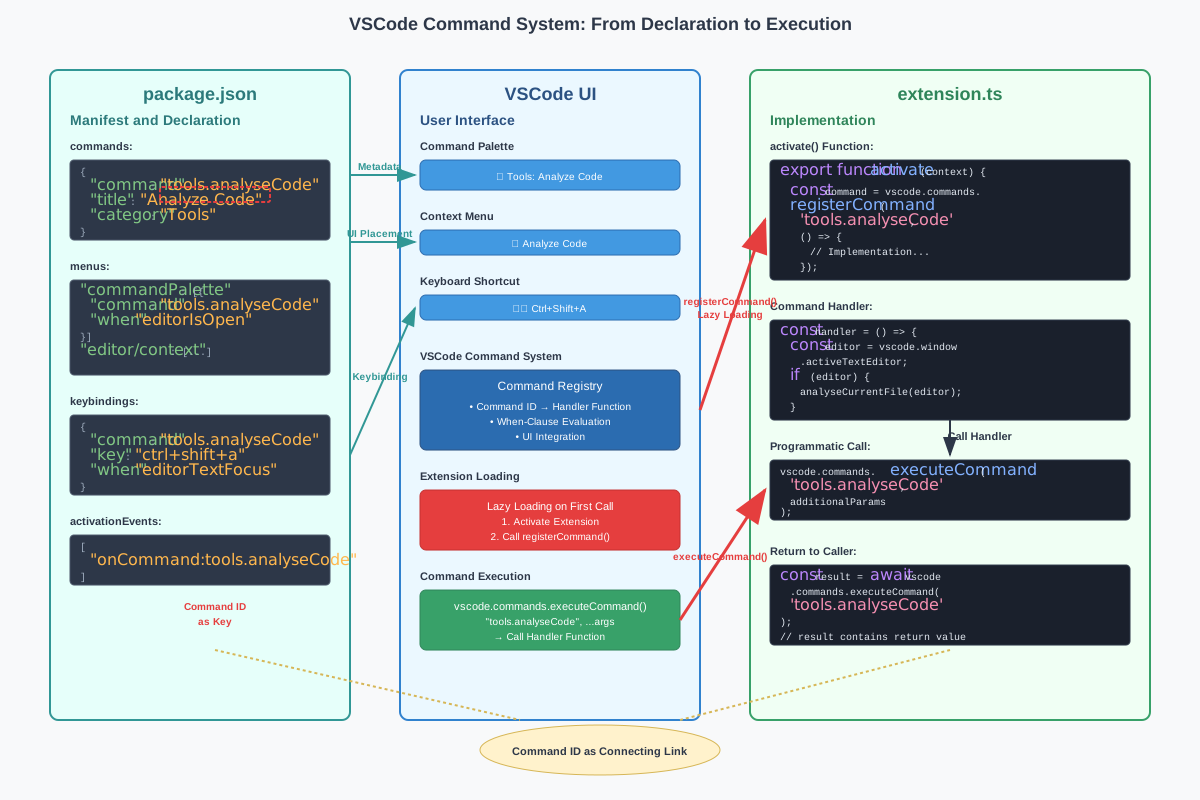
package.jsonEclipse plugin developers are familiar with distributing
configuration across plugin.xml, MANIFEST.MF,
and feature.xml. VSCode consolidates these functions into
package.json as a central configuration file. The crucial
difference lies in the timing: while Eclipse discovers extension points
at runtime through XML parsing, VSCode reads the
package.json at startup, enabling it to display commands in
the command palette immediately without loading the extension.
This declarative architecture acts as a contract between the
extension and VSCode. The package.json promises
functionality that must later be fulfilled by TypeScript code.
The VSCode manifest follows a clear schema that separates metadata from functionality declarations:
{
  "name": "entwicklungstools",
  "displayName": "Professionelle Entwicklungstools",
  "version": "1.0.0",

  "engines": {
    "vscode": "^1.80.0"  // Minimum version for compatibility
  },

  "activationEvents": [
    "onCommand:tools.analyseCode"  // When the extension is loaded
  ],

  "main": "./out/extension.js",  // Entry point of the extension

  "contributes": {
    // All UI contributions are declared here
    "commands": [],
    "menus": {},
    "keybindings": []
  }
}
The contributes section serves as a public API
declaration. VSCode interprets this metadata without executing any code
and uses it to populate menus and the command palette efficiently.
contributes.commandsEach command requires a unique identifier and metadata for the user interface:
{
  "contributes": {
    "commands": [
      {
        "command": "tools.analyseCode",       // Unique ID (like fully qualified class name)
        "title": "Analyze Code Quality",      // Display name in command palette
        "category": "Development Tools",      // Grouping for better discoverability
        "icon": "$(search)"                   // VSCode codicon for toolbar display
      }
    ]
  }
}
The command ID follows the convention namespace.action
and is used both for UI declaration and code registration. VSCode treats
this ID as an immutable key between the frontend and backend of the
extension.
The package.json promises functionality that must be
implemented in TypeScript code. The command ID acts as a contract:
// extension.ts – Implementation of the promised command
export function activate(context: vscode.ExtensionContext) {
    const analyseCommand = vscode.commands.registerCommand(
        'tools.analyseCode', // Must match package.json exactly
        () => {
            vscode.window.showInformationMessage('Analyzing code...');
        }
    );

    // Important: avoid memory leaks through subscription management
    context.subscriptions.push(analyseCommand);
}
This separation allows VSCode to display commands before the extension is loaded. The TypeScript code is only activated and executed upon the first invocation.
While commands defines available actions,
menus determines where these actions appear in the UI. The
when attribute controls contextual visibility:
{
  "contributes": {
    "menus": {
      "commandPalette": [
        {
          "command": "tools.analyseCode",
          "when": "editorIsOpen"  // Visible only when editor is open
        }
      ],

      "editor/context": [
        {
          "command": "tools.analyseCode",
          "when": "editorLangId == typescript && editorHasSelection",
          "group": "navigation@1"  // Positioning in context menu
        }
      ]
    }
  }
}
The most important context variables for when-clauses are
editorLangId (language of the current file),
editorHasSelection (text is selected),
editorIsOpen (editor is active), and
explorerResourceIsFolder (a folder is selected in the
explorer). These conditions can be combined using logical operators such
as &&, ||, and !.
Keybindings provide direct access to frequently used functions and respect platform-specific conventions:
{
  "contributes": {
    "keybindings": [
      {
        "command": "tools.analyseCode",
        "key": "ctrl+shift+a",        // Windows/Linux
        "mac": "cmd+shift+a",         // macOS-specific key
        "when": "editorTextFocus && editorLangId == typescript"
      }
    ]
  }
}
VSCode also supports multi-step keybindings (chord keys) with the
syntax ctrl+k ctrl+m, where keys are pressed sequentially.
Use keybindings sparingly and only for frequently used functions to
avoid conflicts with other extensions.
Systematic command development follows proven patterns and avoids typical pitfalls:
Command ID Consistency: The most common source of
errors is typos between package.json and
registerCommand. Use copy-paste to transfer IDs and define
constants for reused command names.
Subscription Management: Every registered command
must be added to context.subscriptions. Forgotten
registrations lead to memory leaks, as VSCode does not automatically
remove commands when the extension is deactivated.
When-Clause Specificity: Conditions that are too
broad dilute the user experience. Specific context conditions like
editorLangId == typescript improve performance and the
relevance of displayed options.
Keybinding Conflicts: Check new shortcuts against VSCode’s default keybindings and popular extensions. The Context Inspector (available via command palette) helps debug complex when-clauses.